How to set up Happ VPN on a TV: Android TV, Google TV, and boxes
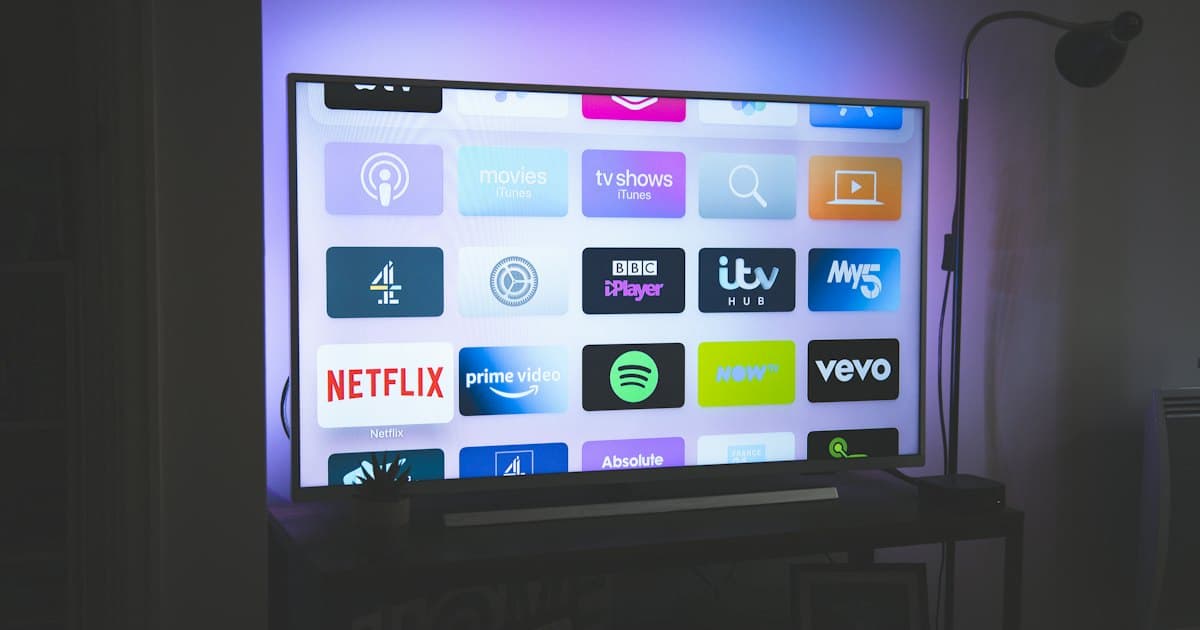
How to install Happ on Android TV and Google TV: the official APK, sending the subscription link by QR, and checking YouTube on the TV.
On a TV, YouTube often opens the home page and will not start the video. Below is which systems Happ installs on at all, and how to send the subscription link there. The install steps were checked against Happ's documentation on happ.su and against the Android app releases. We did not run this path on a live TV. Button labels on your firmware may differ.
Short answer
Happ installs on Android TV, Google TV, and boxes whose system is Android. The publisher's documentation says it is the same Android app as on a phone. You install it as an APK, or from Google Play. In practice the store on a TV often does not show the listing, so the path that works is the official APK.
Apple TV has a separate app, not the iPhone one: "Happ - Proxy Utility for TV", developer Flyfrog LLC, listing id6748297274, free, and it needs tvOS 17.6 or newer. At the time of publication the listing opens in the US App Store. Check the version date on your own storefront. Storefronts change.
You cannot install Happ on a Samsung that runs Tizen, or on an LG that runs webOS. The publisher does not ship those systems. The options there are an Android TV box, an Apple TV with its own Happ app if the box is an Apple one, or a VPN on the router. Then the client lives in the network, not inside the TV, and the TV reaches the internet through it. The site does not have a separate router guide yet.
What you need
- A subscription and a link. Where the link comes from, and why it is not inside Happ: Happ is a client, not a VPN. On a CHEBA VPN trial the link is already on the account page.
- A phone with Happ nearby. You use it to scan the QR from the TV screen. The phone and the TV have to be on the same Wi-Fi if you send the subscription over the local network.
- A remote. Android TV documentation and the Android app release notes describe the TV screen and remote navigation, including routing profiles. A mouse helps if the box already has one. The documentation does not ask you to buy a mouse.
Installing Happ on Android TV
- Open the TV settings and check the system. You need the words Android TV or Google TV, and an Android version. If the system is called Tizen or webOS, this file will not install on it.
- Download Happ.apk to a phone or a computer from the releases at Happ-proxy/happ-android, or from the download page on happ.su. Do not take a file from an ad, a video, or a random site. The name Happ is easy to fake.
- Move the APK to the TV with a USB drive, a send-to-TV function, or the TV browser if that browser can download. When Android asks whether it may install apps from this source, confirm the request with the remote.
- Open the Happ you just installed. On the first launch the app shows the subscription import screen by itself. That is how the Android TV section on happ.su describes it.
- Opening the Google Play listing on the TV is worth it only if search actually shows the card. On a phone the package name is com.happproxy. If the store on the TV is empty, use the APK from step 2. Do not install a third-party "TV version" with a different publisher name.
On Apple TV you do not need an APK. Open the App Store on the box and install "Happ - Proxy Utility for TV". Check that the developer is Flyfrog LLC and the id is id6748297274.
How to send the subscription link to the TV
It is easier not to type the link with the remote. Happ's documentation for Android TV and for Apple TV describes two methods. Both start on the TV screen.
A QR code on the TV. On the first launch Happ shows a code. On the phone where the CHEBA VPN link is already added, open Happ, scan the code from the TV, and confirm that you are sending the subscription. The phone and the TV are on the same Wi-Fi. If the local network blocks the transfer, the app offers to send the subscription over the internet. Leave the import screen open on the TV until the server list appears.
Web Import. On the TV, choose Web Import. The screen shows a temporary code. On a phone or a computer, open tv.happ.su, enter the code, and paste the link from the account page, the "Connection link" block. Or scan the QR on that screen. It already contains the address and the code. At that moment the link passes through the Happ publisher's website. On a home network, the first method is the calmer one: the local QR.
The on-screen keyboard. You can paste the link by hand, because on Android TV this is the same app. A long address is easy to break with the remote. The keyboard is the backup path, for when the QR and Web Import both fail. Take the text from the account page in full, with no space at the start.
Showing the account-page QR to the TV is usually awkward. Most TVs have no camera to read it. In this setup the camera is on the phone, and the code is on the TV.
Turn it on and check
Pick a server and turn the connection on. Android shows the system VPN request once. Confirm it with the remote. Without that confirmation Happ is open, and the TV's traffic does not go through it.
Then open YouTube on the TV after the profile is on. Do not resume the video that was paused before you connected. What else stops the video when the home page opens and the clip does not: VPN for YouTube.
If the TV has a browser, open the IP check. The country should change to the server's country. CHEBA VPN texts list the servers as Sweden.
Routing on the TV
When all of the TV's traffic goes through the VPN, Kinopoisk, IVI, and other Russian services see a foreign address. The catalog can open "in the wrong country," or it can refuse to start the film. Happ has routing for this. The addresses you need go direct. The rest goes through the server. On Android TV, the app release notes specifically improved routing profiles that you control from the remote. On Apple TV the publisher uses simplified Direct Rules instead of a full rule list.
To keep your bank, Gosuslugi, and Russian video on the ordinary network, turn on a routing profile in Happ. After you change the profile, refresh the subscription in Happ and connect again.
If it does not work
Happ will not install on the TV. Start with the system. The APK lives only on Android TV, Google TV, and an Android box. On Tizen and webOS the installer will not accept it. Another Happ build does not fix that. If the system is the right one, allow installation from the app you used to open the file, and download the APK again from the Happ-proxy GitHub or from happ.su. A short file of a few megabytes is not the official package.
There is no "allow VPN" button. Happ has no separate button like that inside the app. Android shows the request on top of the app, once. On a TV it is easy to dismiss it with the remote, or to leave it sitting on the previous screen. Go back and confirm the dialog. If no window appeared, open Android TV settings, the apps section, the Happ card, and check the permissions. Then turn the profile off and on again. The system shows the request again if there is no VPN configuration yet.
YouTube loads, and the video does not play. The service home page tells you nothing. The clip downloads on its own. Close the YouTube app completely and open it after Happ is on. Refresh the subscription in the client and pick the server again. In the TV browser, check the IP check page. If Russian streaming services also stopped opening, turn on routing from the section above. A second VPN is not the fix.
In short
On Android TV and Google TV you install the official Happ APK, take the link by QR from the TV screen or through tv.happ.su, confirm the system VPN request, and open YouTube again. On Apple TV there is a separate app from Flyfrog LLC. On Samsung Tizen and LG webOS there is no client. Russian streaming services are better sent around the tunnel with routing.
Questions
Can you put Happ on a TV?
Yes, if the TV is Android TV, Google TV, or an Android box: the official APK, and Google Play if the listing is there. On Apple TV you install the separate app "Happ - Proxy Utility for TV", which needs tvOS 17.6 or newer. There is no app for Tizen or webOS.
How do you connect a VPN on Android TV?
Install the official Happ.apk, send the subscription link to the phone by QR or through Web Import on tv.happ.su, confirm the VPN request, and turn the profile on.
Does Happ work on Samsung or LG?
On Tizen for Samsung, and on webOS for LG, no. If the TV settings say Android TV or Google TV, the brand does not matter. You install the APK the same way as on any such box.
How do you enter the subscription link on a TV?
It is easier not to type it. Happ on the TV shows a QR, and Happ on the phone scans it while both are on the same Wi-Fi. The backup path is Web Import and the site tv.happ.su. Leave typing the link with the remote for the case when both of those fail.
Will YouTube work on the TV through Happ?
That is what you turn the profile on for. Open YouTube after you connect. If only the home page opens, close the video app and check the IP. On a full tunnel, Russian services may need to go direct through routing.
Try CHEBA VPN free for 3 days
Stable access to YouTube, Telegram and ChatGPT. No card needed — full access starts right after sign-up.